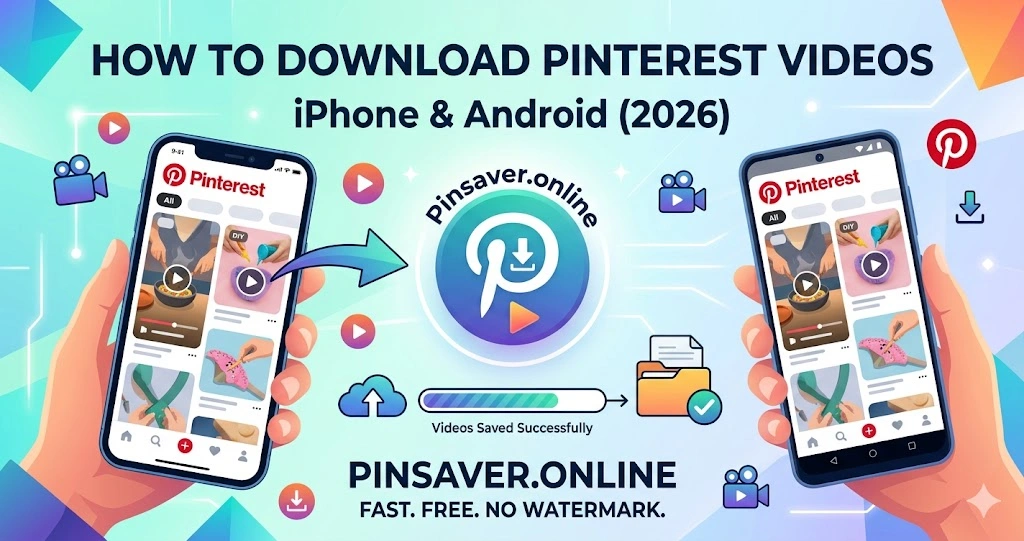
You found a stunning DIY tutorial on Pinterest. Or maybe a recipe video you know you’ll forget. You want to save it — not just “pin” it, but actually have it on your phone. But Pinterest doesn’t make this easy.
Here’s the thing: you absolutely can download Pinterest videos on iPhone and Android. You just need to know the right method. This guide walks you through every working option in 2026 — from the built-in Pinterest download button (when it works) to the fastest third-party tools like Pinsaver.online, which lets you save any Pinterest video, image, or GIF in seconds without installing anything.
Why Can’t You Always Download Pinterest Videos Directly?
Pinterest does have a built-in download option — but it only works sometimes.
The catch is that video creators can choose whether to allow downloads. If they’ve disabled it, the download button simply won’t appear. And even when it does appear, downloaded videos come with a Pinterest watermark burned in.
On top of that, many Pinterest videos are actually embedded from YouTube or Vimeo. For those, Pinterest redirects you to the original platform instead of downloading anything. That’s frustrating when all you want is a quick offline copy.

So while the official method is worth trying first, most people end up needing an alternative. That’s exactly where Pinsaver.online comes in.
Method 1: Use Pinsaver.online (Fastest — Works on Both iPhone & Android)
This is the most reliable method in 2026. No app to install, no login required, and it works on any Pinterest video — including ones that don’t have a download button in the Pinterest app.
How to Download Pinterest Videos on iPhone Using Pinsaver.online
Step 1: Find the video on Pinterest Open the Pinterest app on your iPhone. Find the video you want to save.
Step 2: Copy the video link Tap the Share icon (the arrow at the bottom of the pin). Select Copy Link from the share sheet.
Step 3: Open Pinsaver.online in Safari Open Safari (or Chrome for iPhone) and go to pinsaver.online.
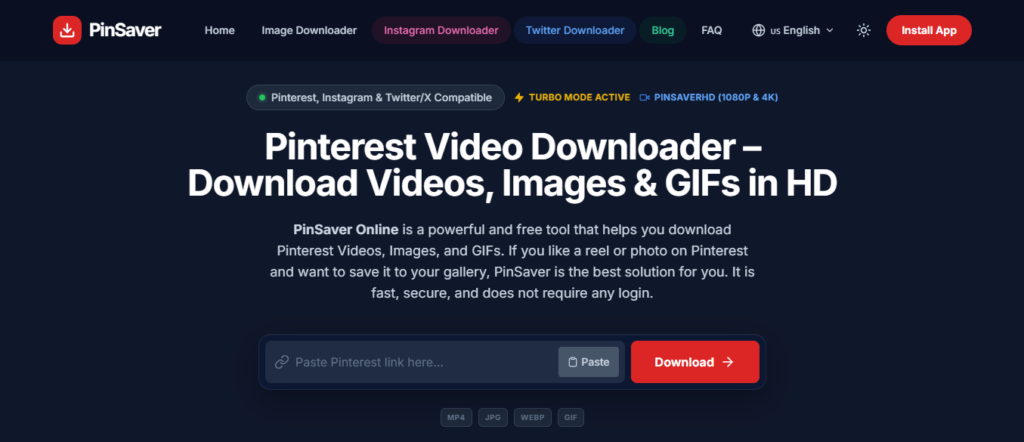
Step 4: Paste and download Tap the input box, paste the link, and hit the Download button. Pinsaver will fetch the video instantly.
Step 5: Save to your iPhone Tap your preferred quality — 4K, 2K, FHD or HD. On iOS, tap Save to Photos or Save to Files. The video lands in your Camera Roll or Files app within seconds.
Pro tip: If you use your iPhone’s Files app, you can move the video to Photos later by tapping and holding the file and selecting “Save Image.”
How to Download Pinterest Videos on Android Using Pinsaver.online
The process on Android is even smoother because Android handles file downloads more naturally.
Step 1: Find the video on Pinterest Open Pinterest on your Android phone and locate the video pin.
Step 2: Copy the pin URL Tap the three-dot menu (⋮) at the top right of the pin. Select Copy link.
Step 3: Open Pinsaver.online in Chrome Open Chrome (or any browser) and navigate to pinsaver.online.
Step 4: Paste the link and tap Download Paste the copied URL into the field and tap Download. The tool fetches the video immediately.
Step 5: Choose quality and save Select your preferred resolution. The video automatically saves to your Downloads folder. You can find it in your Gallery app or using your file manager.
Method 2: Use Pinterest’s Built-In Download Button
This works for some videos — worth trying before using any external tool.
On iPhone:
- Open the Pinterest app and find the video
- Tap the Share icon (↑ arrow)
- Look for a Download option in the share menu
- Tap it — the video saves directly to your Photos app
On Android:
- Open the Pinterest app and tap the video
- Tap the Share icon
- If available, tap Download
- The video saves to your phone’s gallery
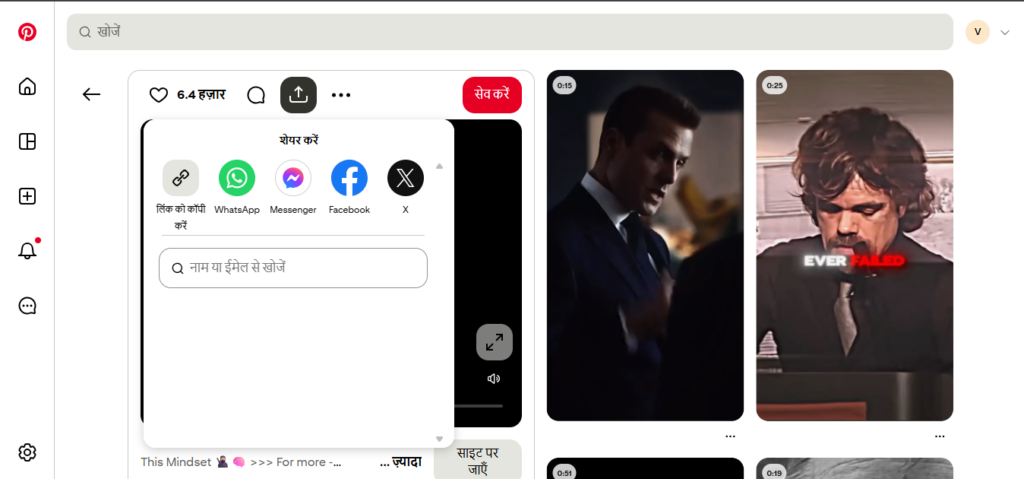
The limitation: This only works when the creator has allowed downloads, and the saved video will have a Pinterest watermark. If you don’t see a Download option, the creator has disabled it — move to Method 1.
Method 3: Screen Recording (When Nothing Else Works)
If a video can’t be downloaded any other way — say it’s behind a restricted account or embedded from another platform — screen recording is your fallback. It’s not perfect (lower quality, records your entire screen), but it works.
On iPhone:
- Go to Settings → Control Center and add Screen Recording if it’s not already there
- Open the Pinterest video and get it ready to play
- Swipe down from the top-right corner to open Control Center
- Tap the Screen Record button (circle with a dot)
- Play the video in full screen
- Stop recording by tapping the red bar at the top. The video saves to Photos automatically
On Android:
- Swipe down twice from the top to open Quick Settings
- Find Screen Recorder (label varies by phone brand — Samsung calls it “Screen Recorder,” Xiaomi calls it “Screen Capture”)
- Tap it, allow permissions, then start recording
- Play the Pinterest video
- Stop recording. The file saves to your Gallery
This method always works but has two real downsides: the video quality depends on your screen recording settings, and you’ll need to trim a few seconds from the start and end.
How to Download Pinterest GIFs on iPhone & Android
GIFs on Pinterest behave slightly differently from regular videos — they’re technically short looping video files, not classic .gif images.
Using Pinsaver.online (recommended): The exact same steps as video downloading. Paste the pin URL into Pinsaver.online and it automatically detects whether it’s a video, GIF, or image. GIFs download as .gif files, preserving the animation.
Using Pinterest’s built-in option: Tap the GIF pin, hit the three-dot menu, and look for Download. On Android, this usually works. On iPhone, the GIF may save as an .mp4 loop instead.
If you specifically want the .gif format (useful for sharing in messaging apps or on websites), use Pinsaver.online — it handles GIF downloads cleanly.
How to Download Pinterest Images on iPhone & Android
Pinterest images are actually the easiest content to save.
Quickest method — built into Pinterest:
- Open the image pin in Pinterest
- Tap the three-dot menu (⋮)
- Tap Download image
- Done — it saves to your Photos
If you don’t see the Download option, the creator has disabled it. In that case:
- On iPhone: Take a screenshot (side button + volume up) — works for any image you can see
- Using Pinsaver.online: Paste the pin URL and download the full-resolution image directly, no watermark
One thing worth knowing: screenshots often save at lower resolution than the original. If you need the full-quality image, Pinsaver.online downloads the original resolution from Pinterest’s servers.
Why Pinterest Videos Can Sometimes Fail to Download
If Pinsaver.online or any other method isn’t working, here are the most common reasons:
The video is embedded from YouTube or Vimeo. Pinterest doesn’t host these directly, so there’s nothing to extract. Visit the original platform to download it.
The pin has been deleted. If you copied a link to a pin that’s since been removed, no tool can fetch it.
You copied the wrong URL. Make sure you copy the pin’s direct URL (it looks like pinterest.com/pin/123456789) and not the board URL or a search result page.
Your browser is blocking the download. On iPhone, Safari occasionally blocks pop-up downloads. Try tapping “Allow” if prompted, or switch to Chrome.
Slow connection. Large HD videos can take a moment to process. If the tool appears to hang, wait 10–15 seconds before trying again.
Is It Legal to Download Pinterest Videos?
Good question — and worth understanding before you save anything.
Pinterest’s Terms of Service prohibit downloading content for commercial use without the creator’s permission. That means: saving a video for personal offline viewing is generally fine; using someone else’s video in your own marketing, website, or social media is not.
A few practical rules to follow:
- Save videos for personal reference, inspiration, or offline viewing
- If you want to repost or use content commercially, contact the creator first
- Give credit when sharing downloaded content
Pinterest’s platform is built on creator content. Respecting that keeps the ecosystem healthy.
Quick Summary: Which Method Should You Use?
| Method | Best For | Watermark? | Requires App? |
|---|---|---|---|
| Pinsaver.online | Any video, image, or GIF | ❌ No | ❌ No |
| Pinterest built-in button | Videos creators allow | ✅ Yes | Pinterest app |
| Screen recording | Restricted/embedded videos | ✅ Yes (UI visible) | No |
For most people, Pinsaver.online is the simplest choice — it handles videos, images, and GIFs in one place, works directly in your mobile browser, and doesn’t require creating any account.
Final Thoughts
Saving Pinterest videos shouldn’t be complicated. The built-in download button is fine when it works, but it’s disabled too often and always adds a watermark. Screen recording is a decent backup but messy.
Pinsaver.online sits in the middle: fast, free, no install, no login, and it works on any iPhone or Android browser. Paste the link, pick your quality, save. That’s really it.
If you save a lot of Pinterest content — recipes, tutorials, design inspiration — bookmarking Pinsaver.online on your phone’s home screen makes the whole process take about 15 seconds per video.
Frequently Asked Questions
A. Yes — when you download using Pinsaver.online, the video is saved from Pinterest’s original source files, so there’s no watermark. The Pinterest watermark only appears on files downloaded through the official in-app button.
A. It works on any iPhone running iOS 13 or later in Safari or Chrome. No app installation required.
A. They save to your phone’s Downloads folder. You can access them via your Gallery app (usually under a “Downloads” album) or any file manager app.
A. Yes — Pinsaver.online offers HD quality options when the original video on Pinterest is uploaded in HD. Choose your preferred resolution before downloading.
A. No. Pinsaver.online works with any public Pinterest pin URL. You don’t need to log in to Pinterest or create any account.
A. Private board content cannot be downloaded with any external tool — those videos are only accessible when you’re logged into the account that created the board.